What is IcoMoon?
IcoMoon is an icon solution, providing three main services: vector icon packs, the IcoMoon App, and hosting icons as SVGs or fonts.
Icon Packs
IcoMoon provides many free icon packs. You can find them in the library tab of the IcoMoon app. Each of them have a license link that you can refer to. Aside from these free icon packs, IcoMoon also provides three premium icon packs which can only be purchased separately.
IcoMoon App
Head over to https://icomoon.io/app using a modern web browser to start using the IcoMoon app. This HTML5 application allows you to quickly browse and search for the icons you need. You can download these icons, do some basic editing, import your own icons, make icon fonts (a font with icons as its glyphs) or generate icons in SVG, Polymer, PDF, XAML, PNG and CSS sprites.
Selecting Icons
You can simply click on an icon cell to select or deselect it. You may also drag to select a group of icons. If you click on an icon cell to select it, and then hold down the Shift key when selecting another icon, all the icons in between these two icons will be selected.
Editing Icons
To edit an icon, use the edit/pencil button and then click on an icon cell. This will bring up the edit panel. The edit panel allows you to perform some simple modifications (such as rotating or mirroring), edit tags, change the grid size given to your icons, etc.
Pro Tip: Instead of pressing the pencil button, you could hold down the option/alt key and then click an icon cell to bring up the edit panel.
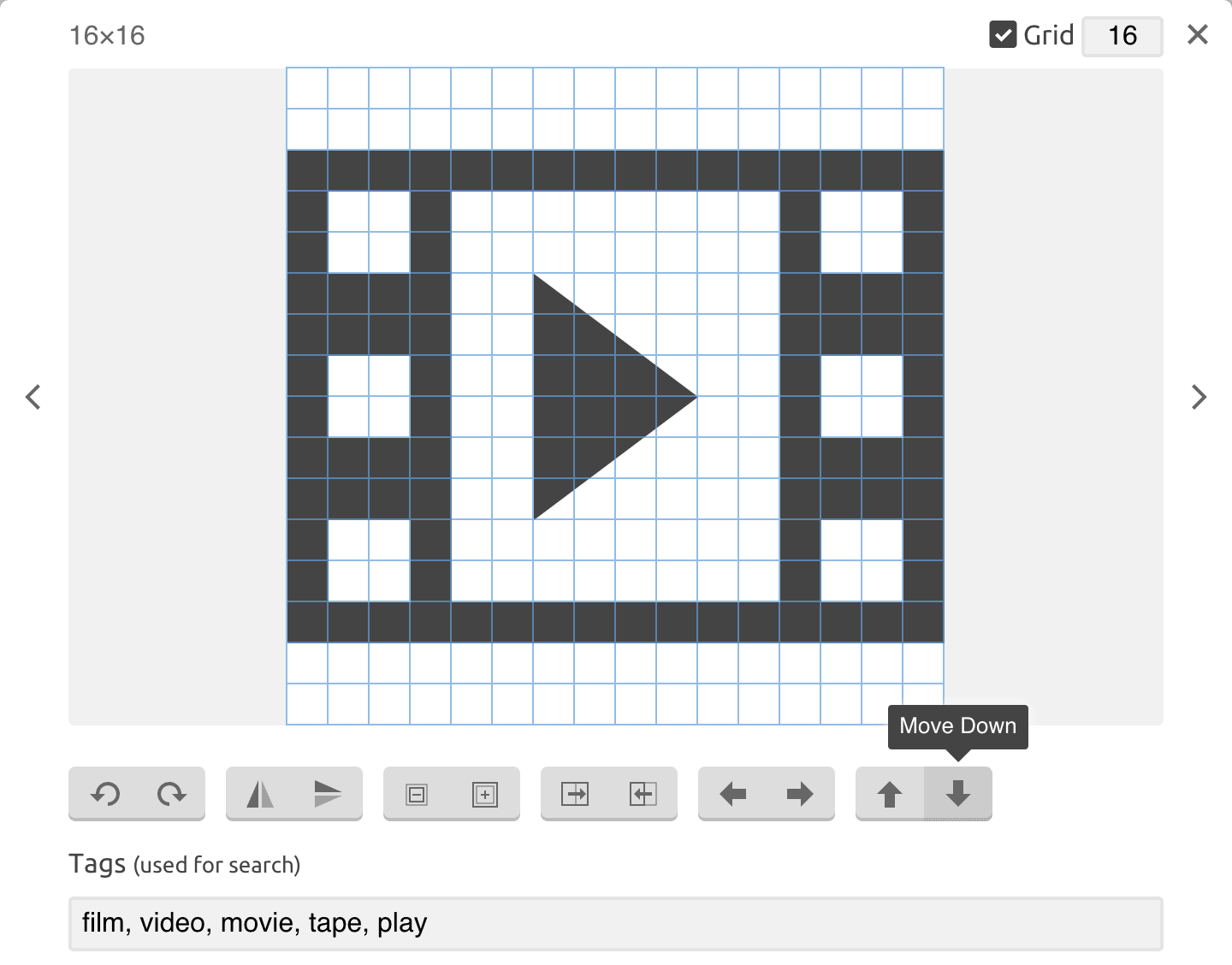
If you need to adjust how your icons align with text, you can use the edit panel and use the Move Up and Move Down buttons.
Importing your own vectors
You can import your own SVG images or SVG fonts to the IcoMoon app.
If you import an SVG font, the glyphs in the font will get extracted
and imported.
If your SVG didn't get imported properly, consider the following guidelines:
- Strokes get ignored when generating fonts or CSH files.
You can convert/expand strokes to fills. - The current version of IcoMoon doesn't fully support evenodd fills. Use nonzero fills instead.
- Text elements get ignored. You could convert them to fills.
- Unite/combine your fills and avoid overlapping paths.
- Instead of using white fills for making holes, subtract the shape in the front from the shape in the back. In Adobe Illustrator, this can be done using the Pathfinder window. In general, avoid overlapping shapes with the same color.
- Adding a bitmap image (PNG, JPEG, etc.) to an SVG image does not make it vector. Bitmap images embedded in SVGs get ignored.
If you still had problems importing your SVGs, contact us. We'll try to help as soon as possible.
Pro Tip: You can use drag and drop to import your SVG files. In order to import your SVGs to the same set, you can either use the menu on top right of each set and choose the Import to Set option, or drag your SVGs and drop them on top of the set you want to import them to.
Pro Tip: If you import an SVG with a filename like
home#house#building-U0xE999, it gets imported with three tags
(home, house, building) and will have a default code of E999 when used
for making a font.
Converting Strokes & Text to Fills
The current version of the IcoMoon app ignores strokes when generating fonts or CSH files. But you can convert strokes to fills in different vector editing programs:
Adobe Illustrator
Select the shapes that you want to convert and then choose Object → Expand. You might need to choose Object → Expand Appearance before you can apply Object → Expand.
Inkscape
Select the shapes that you want to convert and then choose Path → Stroke to Path.
Sketch
Select the shapes that you want to convert and choose Layer → Convert to Outlines
Making a Font
Select the icons that you want to have in your font and then press the Generate Font button at the bottom of the app. This will generate a font and brings up a preview of it. To see the Unicode characters assigned to each glyph, press the U+ button on the toolbar of the font tab.
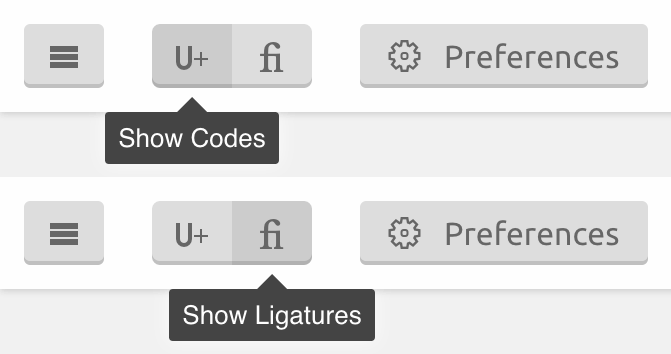
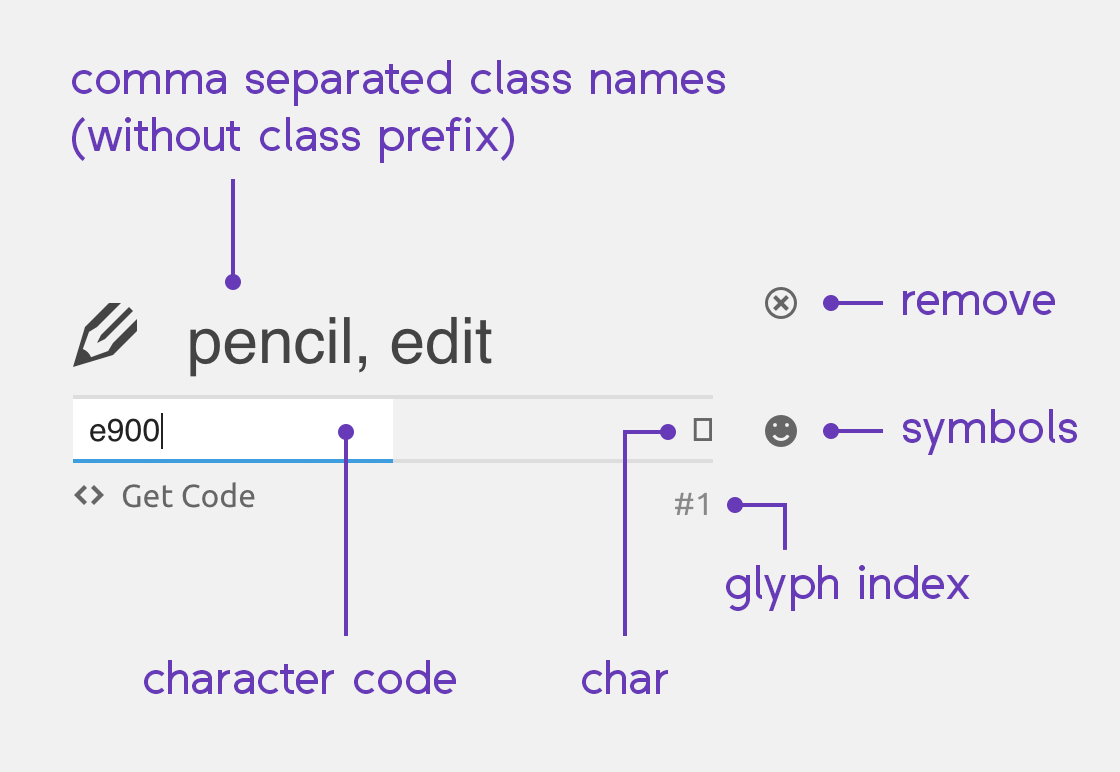
To change the character assigned to a glyph, simply modify the text field located at the bottom right of each glyph. For example, if you type 'A', letter 'A' will be assigned to your glyph. The text field located at the bottom left of each glyph shows the Unicode point assigned to the glyph, in hexadecimal.
Pro Tip: You can modify all number input fields in IcoMoon using arrow keys, or by scrolling. Hold the Shift key while doing so to change the number with bigger steps.
Before downloading your font, you can change the name of the font via the Preferences panel. This panel may also be used for more advanced settings and to change your font's baseline or em size, use the Preferences panel.
Note: Using Latin letters is not recommended for icon fonts. Using the Private Use Area of Unicode is the best option for icon fonts. By using PUA characters, your icon font will be compatible with screen readers. But if you use Latin characters, the screen reader might read single, meaningless letters, which would be confusing.
Ligatures
To enable/disable ligatures, press the fi button in
the font tab of the app. By enabling ligatures, you will be able to
assign words/tags to each glyph. You can use comma to assign multiple
words to each glyph. By assigning a word to an icon, you can type that
word and the icon would appear:
Interactive Demo at Linearicons.com
If the platform in which you use your font supports ligatures, typing the words you assign to each glyph would bring up that glyph. Ligatures are not supported in IE 9 and older, but the IcoMoon app provides a javascript polyfill for you. IE 10 and other modern browsers support ligatures.
Note: To keep the size of your fonts down, IcoMoon assigns empty glyphs to the single letters that you use in making your ligatures. For example, if you assign the word home to an icon, letters h, o, m and e would be assigned to empty glyphs. To assign these letters to actual glyphs rather than empty ones, you can use the two alphanumeric sets available in the library tab. You need to be a paid plan in order to access these glyph sets.
Also note that having empty glyphs for your alphabetic letters is perfectly okay when using the font in web. In case your font fails to load, the browser would fallback to using a different font and therefore the words you assigned to your icons would become readable, which is a good fallback.
Font Metrics
You can set the baseline and the em size (size of the em square) of your font using the IcoMoon app. The height of the baseline is determined as a percentage of the em size.
The IcoMoon app aligns the top of the icon canvas to the ascender line and its bottom to the descender line of the font. Using this technique, the size of your font will directly translate to the size of the icon. For example, if you set your font-size in CSS to be 16px, you will get a 16px icon. This method was first introduced by IcoMoon.
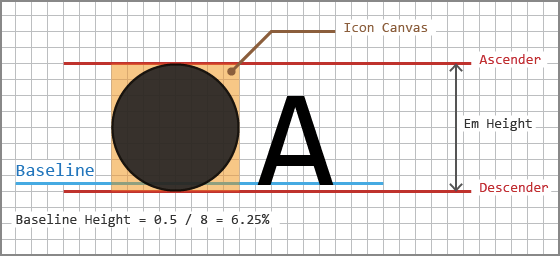
Using this alignment technique, the bottom of the icon will be placed near the baseline of any text before/after the icon. This is normally the expected behavior but you can always change the baseline of your font via the preferences panel in the Font tab.
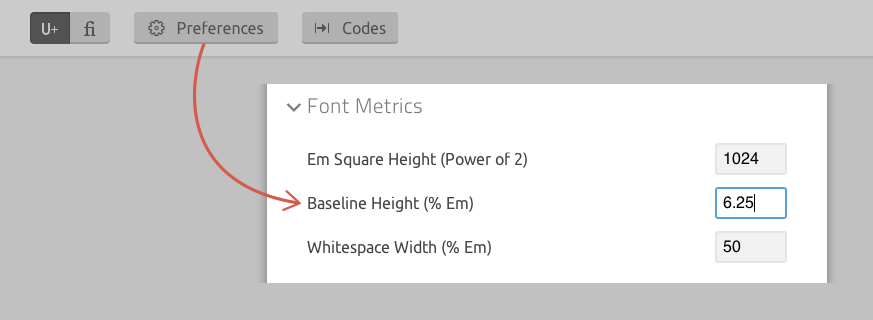
Pro Tip: By changing the baseline, you can change how your icons align vertically.
Pro Tip: The Whitespace Width option determines the width of the whitespace character (0x20) as a percentage of the height of the em square. Using a larger number would make the space character take up more space horizontally.
Generating Icons in SVG & More
In addition to icon fonts, the IcoMoon app allows you to download your chosen icons as SVGs, which can be used as inline SVGs in HTML.
If you prefer to download your icons in other formats, use the preferences panel in the Generate SVG & More tab. Supported formats include:
- Polymer: icon set in the iron-iconset-svg format.
- PDF: Can be used for iOS or OS X app development.
In addition to PDFs, you can use Icomoon.swift to convert IcoMoon's icon fonts to type safe enums for each icon. - XAML: Useful in developing Windows & Windows Phone apps.
- CSH: Photoshop Custom Shapes. Handy for usage in Adobe Photoshop.
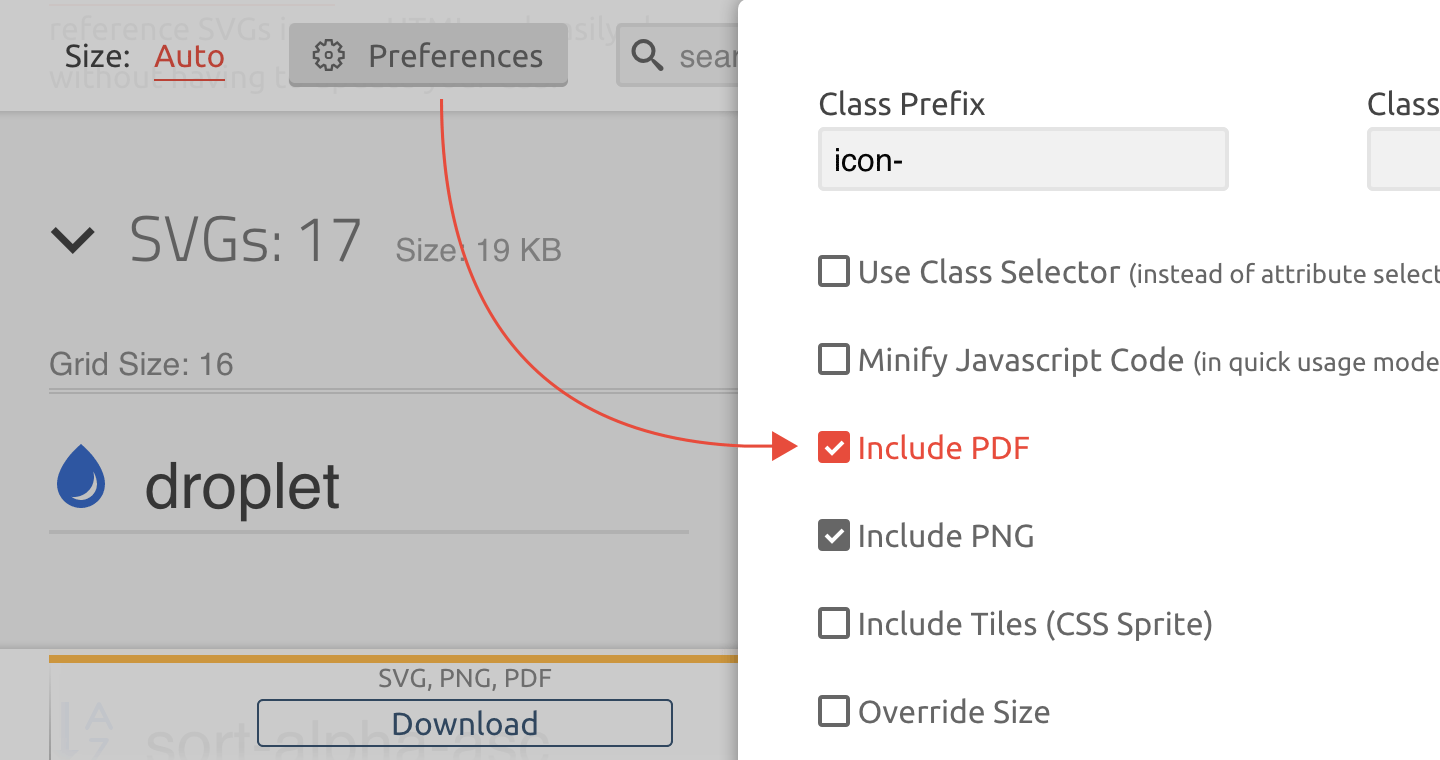
Saving & Loading
When using IcoMoon, your modifications will automatically get saved in your browser's cache (using IndexedDB). Furthermore, every generated font pack contains a selection.json file which you can import to the app. You may import this file both via the Import Icons button in the app, or via the project manager (accessed from Main Menu → Manage Projects). If you import your selection.json file via the project manager, your project settings will get imported too.
The project manager also allows you to save project files locally.
If you are using a paid plan, your changes will automatically get uploaded and synced to your account on IcoMoon's servers.
Note: By default, your data gets saved in your browser's cache. It does not get uploaded to your user account on IcoMoon's servers. If you clear your browser's cache, this data will be lost.
Using Inline SVGs
When you download your icon pack from the SVG tab in the IcoMoon app, it comes with a demo.html file that contains SVG icon definitions on top of the document, below <body> and inside SVG's <defs> element. These icons can be referenced and used as inline SVGs like so:
<svg class="icon-home">
  <use xlink:href="#icon-home"></use>
</svg>In the example above, we are embedding symbol definitions in the HTML itself. This works fine in all modern browsers as well as IE 9+.
It is also possible to link to an external SVG containing the definitions:
<svg class="icon-home">
  <use xlink:href="symbol-defs.svg#icon-home"></use>
</svg>
Referencing an external SVG has the advantage that your icons get cached, with one HTTP request. But the external SVG and the HTML should be served from the same domain. This approach works fine in modern browsers except for IE 9+. In order to support IE 9+, IcoMoon uses svgxuse. This polyfill detects if the icons are loaded properly; if they aren't, it sends one HTTP request to fetch and cache symbol definitions.
Using Generated Fonts
The zip package that IcoMoon generates contains everything you need to get started using your icon font. Your font is provided in four different formats. Sample HTML and CSS files are included in the package too.
Getting Crisp Results
Icon fonts have a bad reputation of looking blurred. But as you can see here and here, it is possible to get completely sharp and crisp results.
To get crisp results, the IcoMoon app should know the grid size of the icons you're choosing. You don't need to worry about grid sizes when using icons from IcoMoon's library. But if you are importing your own SVGs, you need to specify the grid size. If you don't specify it, IcoMoon would assume your preview size to be the grid size. For example, if you are viewing your icons at 32px, IcoMoon would assume the grid size to be 32×32. But you can also manually specify the grid size via the edit panel. To bring up the edit panel, click on the pencil button and then click on an icon. You can also use the menu on top right of each icon set to reset all grid sizes in that set.
Note: Don't change the grid size of the icons imported from IcoMoon's library. They already have the correct grid size set for them.
When in the font tab of the IcoMoon app, your icons will be grouped by
their grid sizes. To get the best results, you should use this size
when using your font. For example, if an icon set is optimized for (16
× N)px sizes, you will get crisp results by setting your
font-size to 16px, 32px, 48px (= 3 × 16px), etc. Also note that
by using -webkit-font-smoothing:
antialiased; in your CSS, you can get better results.
The macOS version of Firefox doesn't render fonts according to how
they were designed unless you use
-moz-osx-font-smoothing: grayscale;.
(supported in Firefox 25+.)
Note: Setting a grid size in the IcoMoon app does not change anything about the icons themselves. The grid size of an icon is inherent to how it was designed. For example, setting a grid size of 14 in the Edit panel, for an icon that was designed on a 16px grid, does not make it pixel perfect at 14px or its multiples. Since IcoMoon itself has no way of knowing the grid size (if any) that was used in designing a custom icon, it lets you specify the grid size. IcoMoon uses this size for snapping the baseline of its output font with the grid. If the grid size that you have set is correct, snapping the baseline of the font to the grid would make the final result pixel perfect.
Accessibility and Screen Readers
For the best fallback in case your font fails to load, use suitable emoji or Unicode character codes for your icons. By doing so, even if your font fails to load, the system font would show an appropriate glyph. For example, you can use 📅 for a date picker icon or ⭐️ for a favorite/like button.
Pro Tip: If you are using macOS, you can press Ctrl + Cmd + Space to easily browse and insert emojis in any text field.
If you only need a few icons, you might want to consider embedding your font in CSS. The IcoMoon app has an option for doing this in the Preferences panel. When you embed the font in CSS, it can no longer fail to load. As long as the CSS loads, your font will load too. The drawback is that if your font is large, it can make the CSS large and hence slow down the initial loading of the page; then again inline SVGs have the same issue.
Due to bad implementation or bugs in some browser extensions, there are some concerns that icon fonts are not accessible to people with dyslexia. IcoMoon uses a simple CSS solution to address this.
Some screen readers (such as Apple's VoiceOver), read the content
inside pseudo elements. You can hide an element from screen readers
using the aria-hidden="true"
attribute.
You can make screen readers read any text you wish. This is usually useful when you want to use an icon without any visual text near it. Here's an example:
<a href="#">
<span class="icon-home" aria-hidden="true"></span>
<span class="visually-hidden">Home
</span>
</a>
The visually-hidden class in
this example is taken from H5BP:
.visually-hidden {
    border: 0;
    clip: rect(0, 0, 0, 0);
    height: 1px;
    margin: -1px;
    overflow: hidden;
    padding: 0;
    position: absolute;
    white-space: nowrap;
    width: 1px;
}
Supporting IE 7 and IE 6
Old versions of Internet Explorer (IE 7 and older), don't support pseudo elements. If you need to support these browsers, the IcoMoon app can help you by generating both a javascript polyfill and a special CSS file (that uses CSS expressions, aka dynamic properties). You can use either of these files. To enable generating these files, use the preferences panel before downloading your font pack.
Serving Fonts from a Different Domain
Cross domain font requests fail in some browsers. Therefore, if served from a different domain, your web fonts need to have the appropriate “Access-Control-Allow-Origin” response header. You can use the following two configs to properly set headers:
# For Apache
<FilesMatch ".(eot|ttf|otf|woff|woff2)">
  Header set Access-Control-Allow-Origin "*"
</FilesMatch>

# For nginx
location ~* \.(eot|ttf|woff|woff2)$ {
  add_header Access-Control-Allow-Origin '*';
}
To learn more about enabling cross-origin resource sharing, see enable-cors.org.
If you are using IcoMoon's Unlimited plan, it lets you upload your fonts for hosting and you won't need to worry about response headers or enabling CORS. To upload your icons for hosting, press the Enable Quick Usage button in the font or SVG tabs in the IcoMoon app.
Installing and Using Fonts Locally
To use the generated font in desktop applications, you can install the TTF font on your system. When installing the TTF font or viewing it, the operating system may not show all the glyphs in your font, but that doesn't mean that the glyphs aren't included in the font. In most cases only the basic Latin characters are shown.
If you are using macOS, you can use Font Book to see all the glyphs included in the font by pressing cmd + 2 or choosing the second option on top left of Font Book.
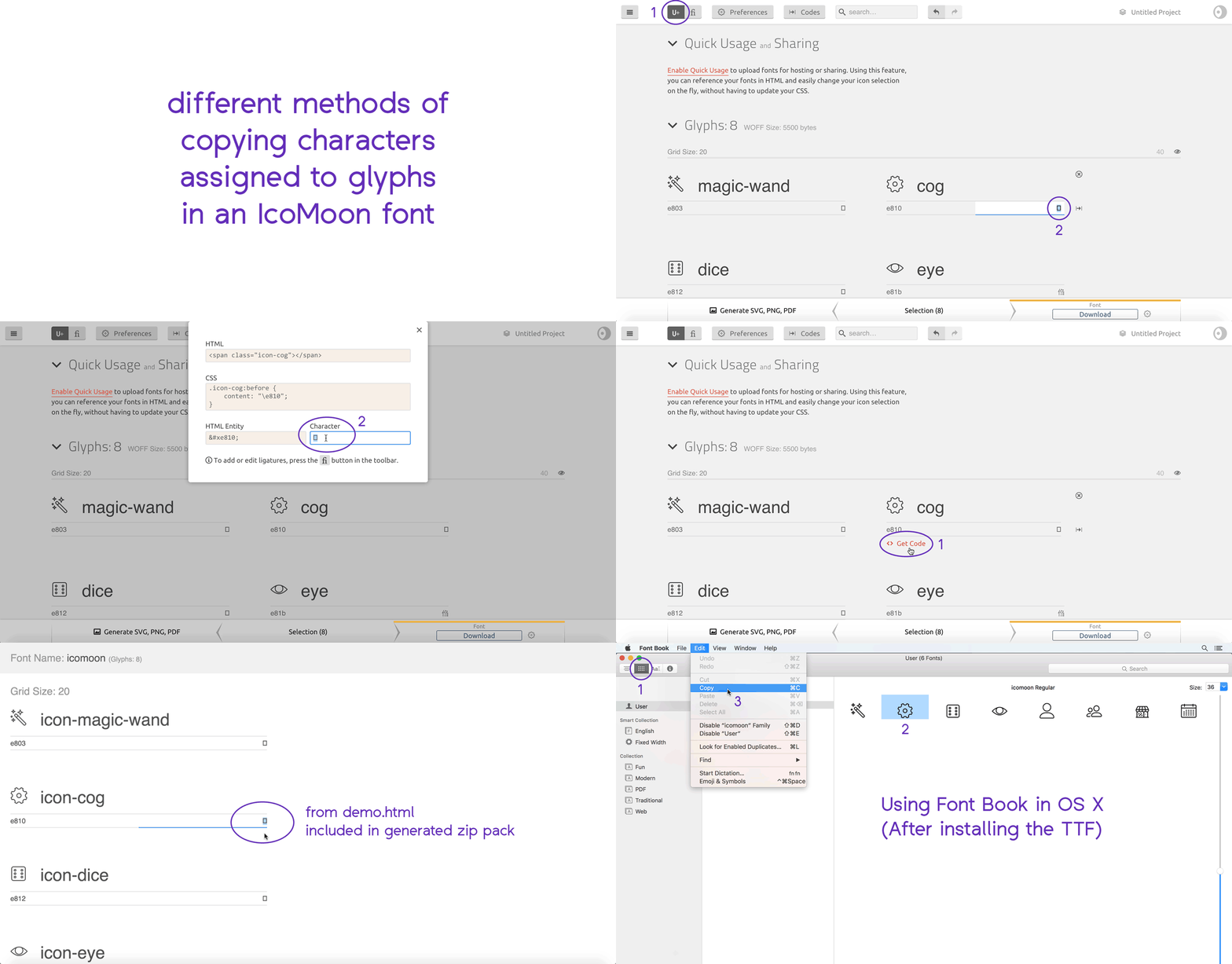
After installing the TTF font, open the demo.html (included in the zip pack you downloaded) to see a list of the glyphs in your font. The text box located to the bottom right of each glyph contains a character (which may be invisible). You can copy and use this character in any desktop application that allows entering text and choosing a custom font to display it.
Note: When using type tools in a desktop applications, do not enter characters that don't exist in your font. If you do so, the desktop application may switch your selected font to a different font. You should only be copy/pasting the characters that exist in your font. The following gif demonstrates different methods of copying characters assigned to your glyphs.
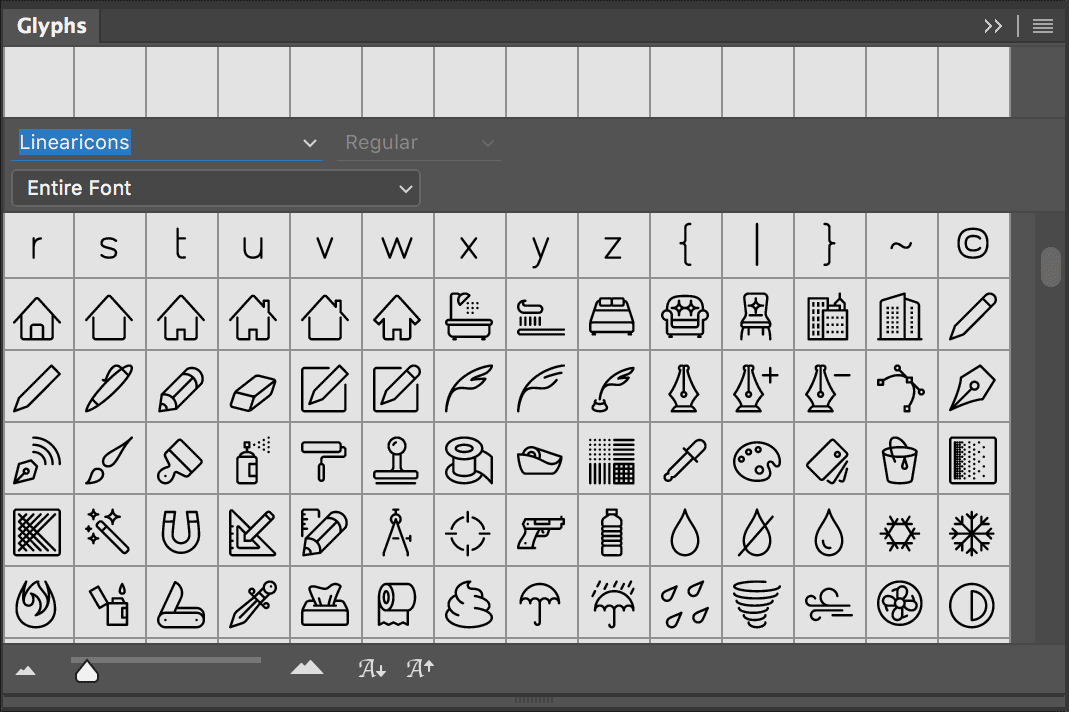
Pro Tip: In recent versions of Adobe Illustrator or Adobe Photoshop, you can use the Glyphs window to view and pick the characters in your fonts.
To make it easier to use your font locally, consider adding ligatures to your glyphs before downloading the font.
Note: In some operating systems, reinstalling an updated version of a font that you previously installed may not work as expected. You may need to change the version of the font to make sure the operating system would be using the most recently installed font. To set a version for your font, refer to the Preferences panel of the Font tab. Renaming the font (via the preferences panel) is another way to remedy this problem. You may also need to reopen the application in which you're using the font.
Questions/Support
You might find your question in the FAQ page. Feel free to get in touch if you have any suggestions or questions.